LimeStaff Caching System Guide
Overview
LimeStaff uses a combination of WordPress Custom Post Types (CPT) and periodic synchronization to cache job data efficiently. This caching mechanism ensures that job listings are quickly accessible to users while keeping the data up-to-date with the source.
Where is Data Cached?
Custom Post Type (CPT):
- All job data is stored as WordPress posts of a custom post type.
- Each job post contains metadata (postmeta) for additional job details, source IDs, and sync status
Auxiliary Cache:
- Some settings, sync queues, and transient states are stored using WordPress options and transients for performance and state tracking. This also includes mappings for job location, job types, and other similar information.
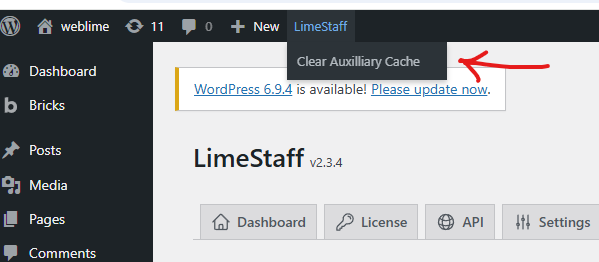
- Clearing Manually: In the WP admin bar, click LimeStaff → Clear Auxiliary Cache.
How Does Periodic Sync Work?
Automatic Sync:
-
LimeStaff schedules a background job (via WP-Cron or loopback requests) to periodically fetch and update job data from the source.
-
The sync interval can be adjusted via plugin settings. Recommended is 24 hours.
Manual Sync:
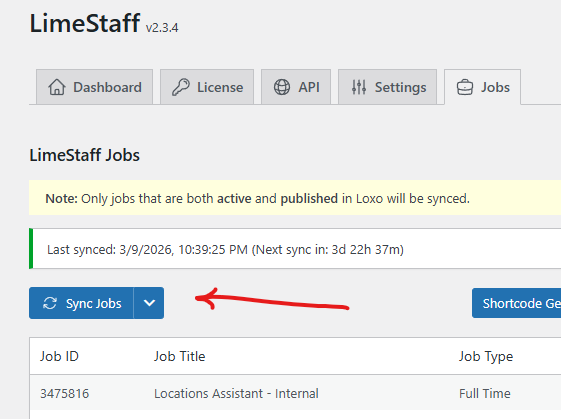
- Normal Sync: This can be triggered manually by clicking the Sync Jobs button in Settings → LimeStaff → Jobs. This will sync changes in Loxo to LimeStaff. Normally, you won’t need to do this. LimeStaff automatically listens for updates from Loxo and updates the related job almost instantly.
-
Forced-Sync: In rare cases, if a change made in your job source (like Loxo) doesn’t show up in LimeStaff, you can run a forced sync. This will ignore previous updates and re-sync all jobs from scratch. To do this, hold CMD (Mac) or CTRL (Windows) and click the Sync Jobs button.
Troubleshooting
Issue: Changes from Loxo are not visible on the site.
Solution:
- Manually trigger a job sync (see Manual Sync).
- Clear Auxiliary cache (see Clear Auxiliary Cache).
- Confirm Loxo API credentials are valid in Settings → LimeStaff → API.